Instructions to Log In the First Time
If you have never created an account in Utah 360 before, logging in the first time creates your account automatically. All you need to do is choose Log In!
Step 1After you download the Utah 360 app from the Apple App or Google Play Store - Click Log In at the top right corner. Logging in allows for your experience and content to be customized. We will not send you emails or sell your data. Promise! 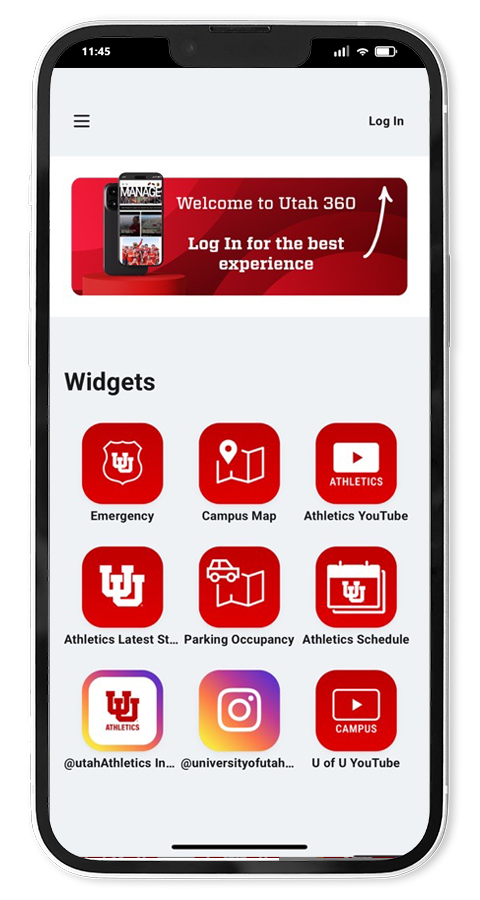 |
|
Step 2Utah 360 has four different ways to log in. If you are an active Student, Staff or Faculty member, use your UNID to log in. Otherwise, select Google, LinkedIn or Apple. Tip - These are referring to your Google or Apple account, which may not be a Gmail or Apple email address. If you have an iPhone, you have an Apple account. If you have an Android phone, you have a Google account.  |
|
Step 3Validate your account. No matter which option you choose, you will be prompted to verify and confirm you want to send your information to Utah 360. For Students, Staff and Faculty, the Campus Login screen will appear. For all other options, you will be taken to a web page to confirm. For more help, see these pages: Trouble logging in with your UNID and DUO two factor identification - contact the UIT help desk at https://it.utah.edu/help/ Google Account Sign In help - Click Here LinkedIn Account Sign In help - Click Here Apple Account Sign In help - Click Here | |
Step 4Accept the Usage and Privacy Policy. Click the checkbox next to "I accept" which will activate the "Accept" button. 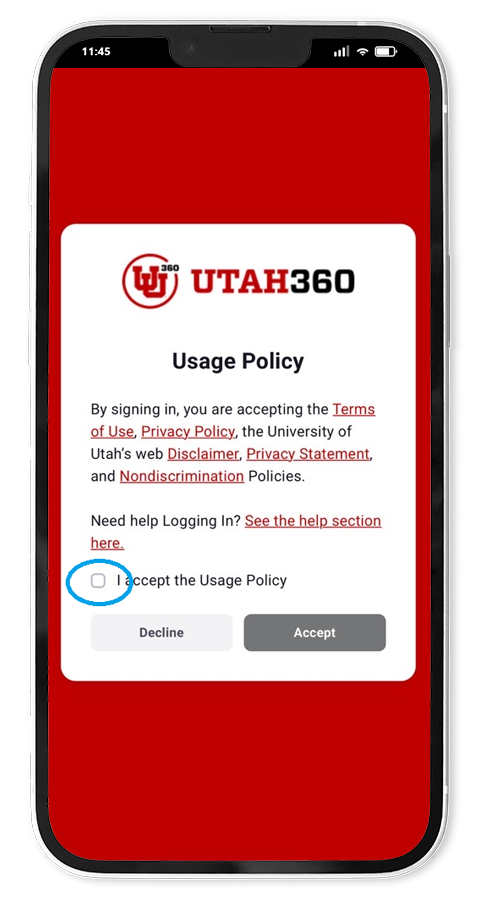
|